
Knowledge Hub / WordPress / Edit content on your WordPress website
Edit content on your WordPress website
Update the text on any page of your website using Elementor, then make words bold, underlined or into links.
Before you start
You'll need to be logged in to your WordPress dashboard – see our login guide. Nothing is saved until you click Update, so remember that final step.
Prefer to watch?
A short video walkthrough of this guide is on its way. In the meantime, just follow the steps below.
Video coming soon
Editing existing text
Log in to your WordPress dashboard. Not sure how? Follow our login guide.
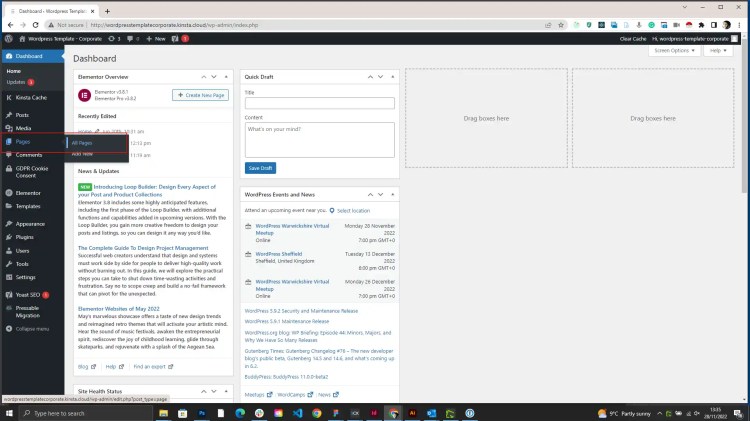
In the dark menu on the left, hover over Pages and click All Pages.
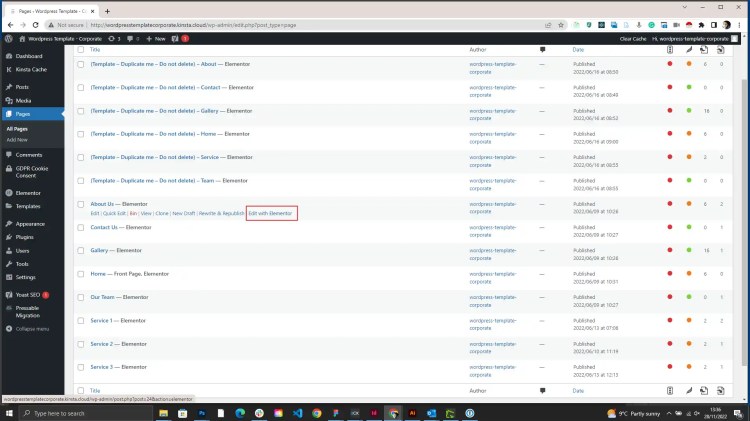
You'll see a list of your website's pages. Hover over the one you want to change and click Edit with Elementor.
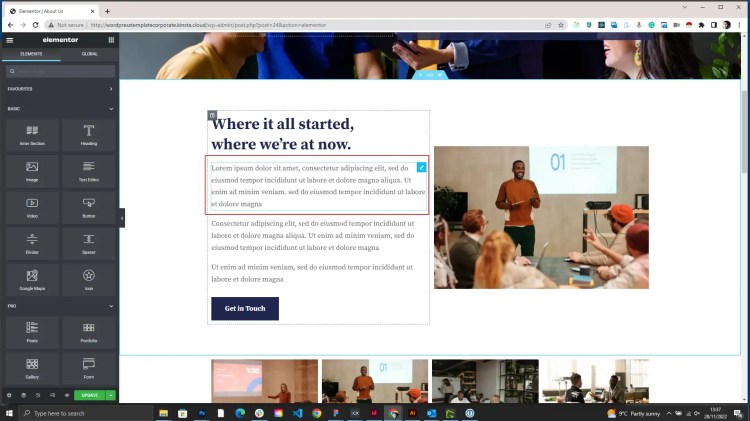
The page opens in the Elementor editor, with your editing tools on the left.

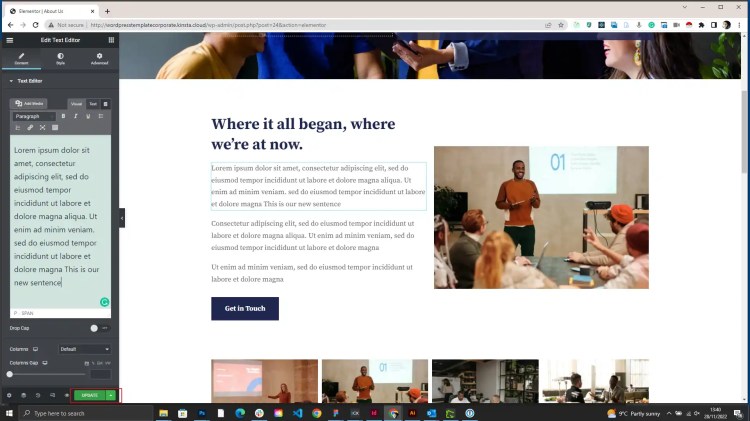
Hover over the text you want to change and click the pencil icon that appears in its top right corner. The text editor opens in the panel on the left.
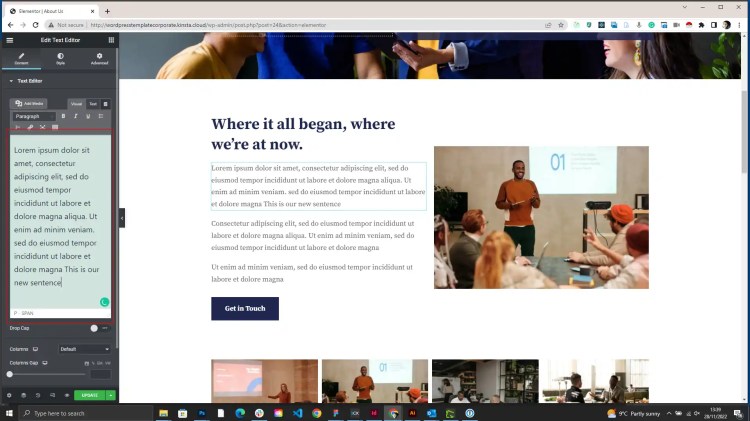
Make your changes in the text box on the left. You'll see them appear on the page as you type.
Click Update at the bottom of the left-hand panel to save your changes. If you don't click Update, your changes will be lost.
Making text bold or underlined
Follow steps 1–5 above to open the text you want to change.
Highlight the words you want to change, then click B (bold) or U (underline) in the text editor toolbar.

Click Update to save your changes.

Adding a link
Follow steps 1–5 above to open the text you want to change.
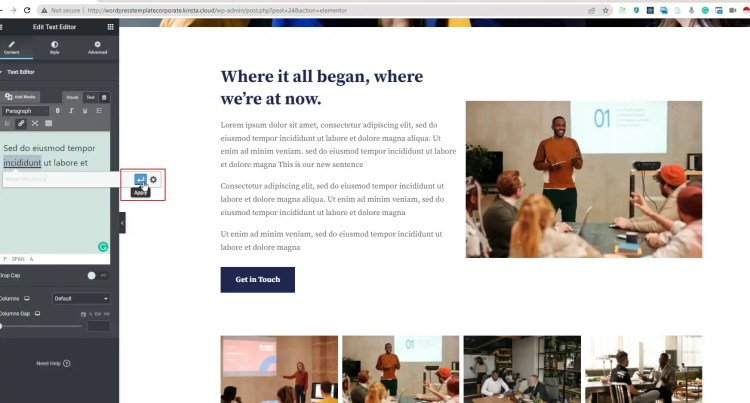
Highlight the words you want to turn into a link, then click the link icon (it looks like a chain) in the toolbar.

To link to another website, paste its full web address into the box and click the blue arrow.
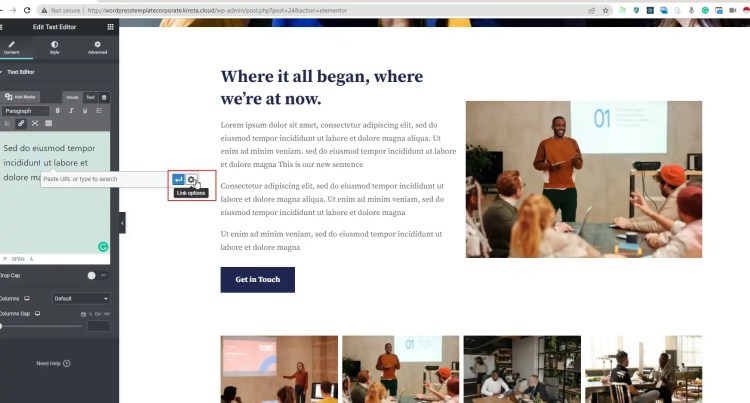
To link to a page on your own website, click the cog icon next to the box, then choose the page from the list and click Add Link.
Click Update to save your changes.


