Knowledge Hub / E-commerce / Bulk edit products in WooCommerce
Bulk edit products in WooCommerce
Update lots of products at once – such as changing prices across your shop – by exporting them to a spreadsheet, editing it and importing it back in.
Before you start
You'll need to be logged in to your store's dashboard (see our login guide) and have a spreadsheet program such as Excel, Numbers or Google Sheets. Only change the columns you need to – leave the ID and SKU columns as they are.
Prefer to watch?
A short video walkthrough of this guide is on its way. In the meantime, just follow the steps below.
Video coming soon
Exporting your products
Log in to your store's dashboard. Not sure how? Follow our login guide.
In the dark menu on the left, hover over Products and click All Products.

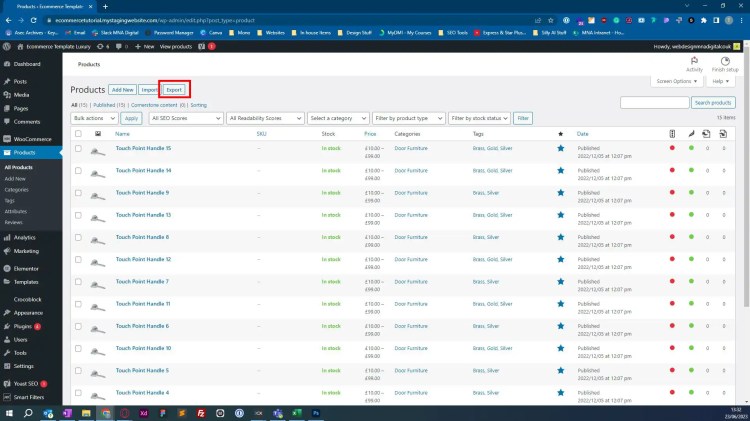
At the top of the product list, click Export.
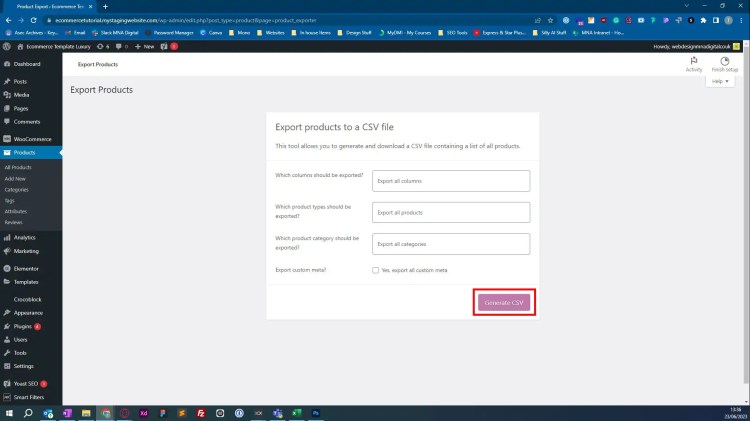
Click Generate CSV. A spreadsheet of all your products downloads to your computer.
Editing the spreadsheet
Open the file and make your changes – for example, update the Regular price column. When you're done, save it as a CSV file and close it.
Importing your changes
Go back to Products → All Products in your dashboard.
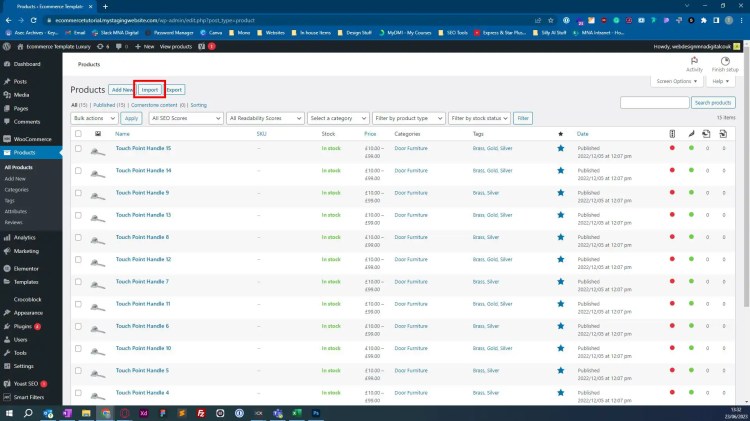
At the top of the product list, click Import.
Click Choose File and pick your edited spreadsheet. Tick Existing products that match by ID or SKU will be updated, then click Continue.

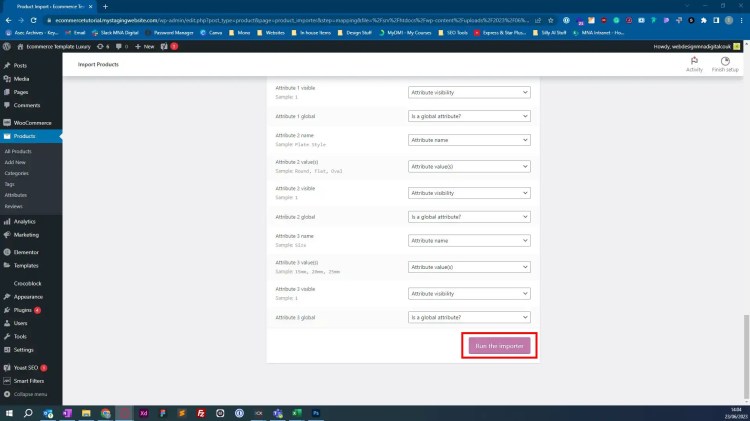
Check the columns all match up, then click Run the importer at the bottom of the page. Your products will update – this can take a minute for larger shops.