
Knowledge Hub / E-commerce / Logging into your online store
Logging into your online store
Find your login page and sign in to your store's dashboard, where you can manage products, orders and the content on your website.
Before you start
You'll need the username and password we sent in your welcome email when your store went live. Can't find them? Call us on 01902 214 061 and we'll resend your details.
Prefer to watch?
A short video walkthrough of this guide is on its way. In the meantime, just follow the steps below.
Video coming soon
Accessing the login area
Open a new tab in your web browser (for example Microsoft Edge, Google Chrome or Firefox).
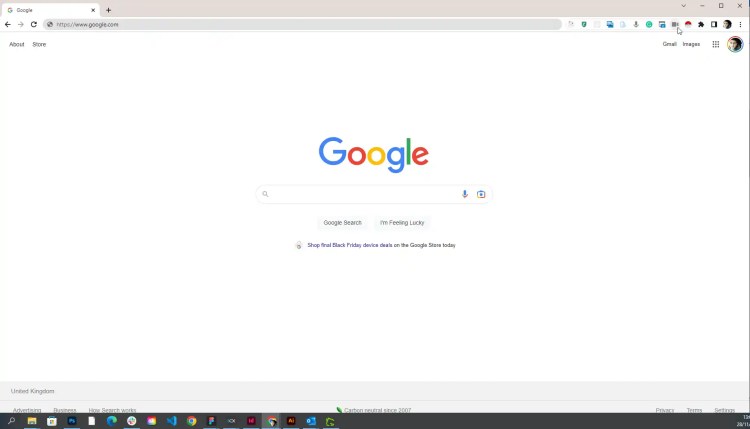
Find the welcome email we sent when your store went live. It has your login address, username and password.
[Screenshot: Local Eyes welcome email]
Go to your login page. This is your website address followed by /wp-admin – for example www.yourstore.co.uk/wp-admin. Type it into the address bar at the top of your browser and press Enter.

Enter the username and password from your welcome email.

Click the blue Log In button. You'll land on your dashboard, where you'll find Products and Orders in the menu on the left.


